


HOW TO SET UP SMARTERS IPTV
SMART TV (Samsung/LG/Android)
FIRESTICK: How to install SMARTERS IPTV
1. First, we will install the “Downloader” app.
This app will help you sideload IPTV Smarters onto your FireStick (as browser downloads are not allowed).
You can also refer to our detailed guide on how to sideload apps on FireStick using Downloader.
2. Click on the “Find > Search” option on the FireStick home screen.
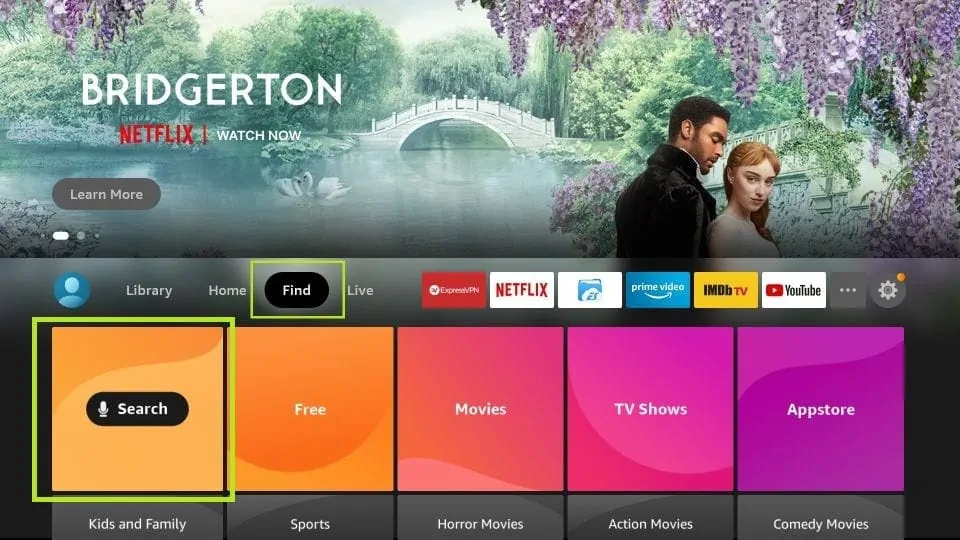
Use the search function on your Amazon Firestick to find and install IPTV Smarters.
3. Enter the name of the app (it is called Downloader).
Select the “Downloader” option when it appears in the search results.
On the next screen, choose the Downloader icon to download and install the app.
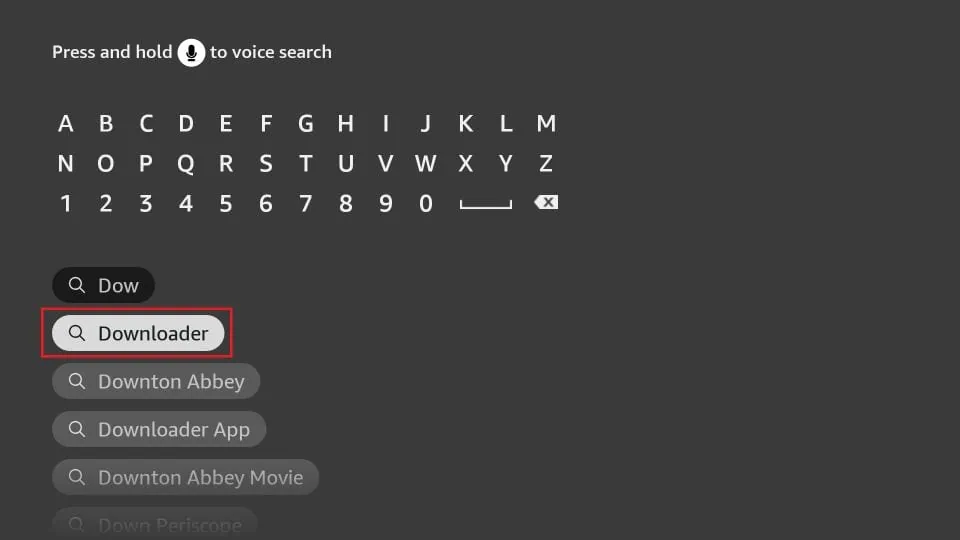
Use the search function on your Firestick to find the Downloader app for installing IPTV Smarters.
4. After installing the Downloader app, return to the FireStick home screen.
From the menu bar, click on “Settings.”
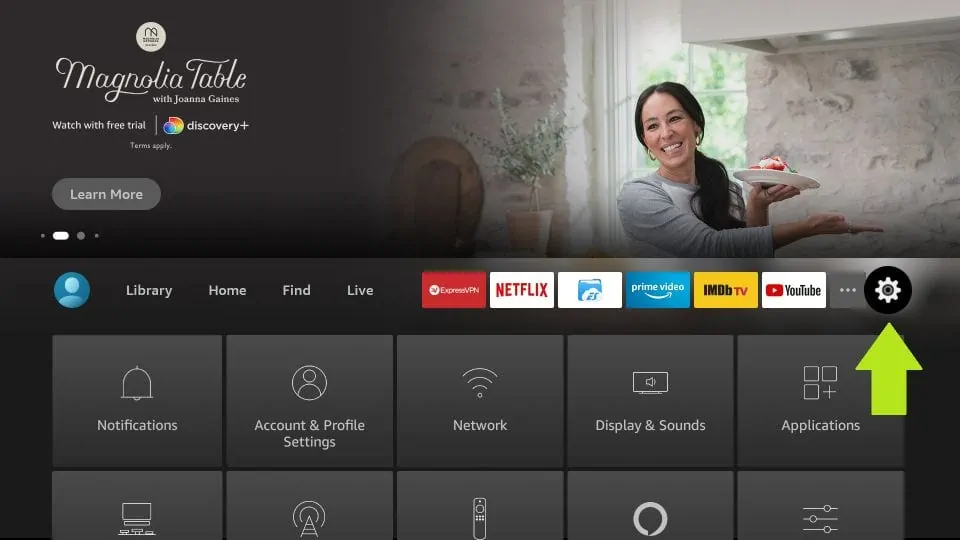
Open the Firestick settings menu to configure system options and install IPTV Smarters.
5. In the Settings menu, select the “My Fire TV” option.
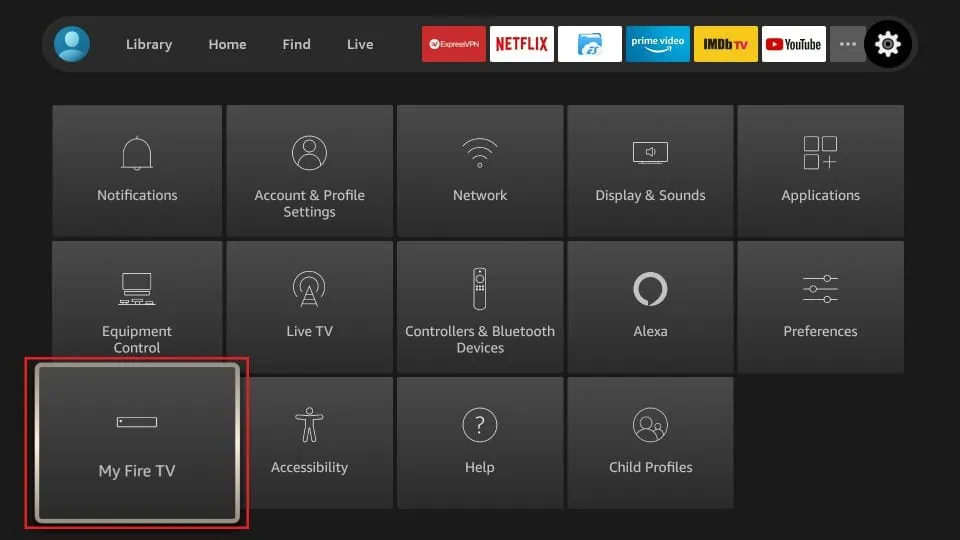
Navigate to “My Fire TV” in the Firestick settings menu to access system options.
6. On the next screen, when the following list of options appears, click on “Developer Options.”
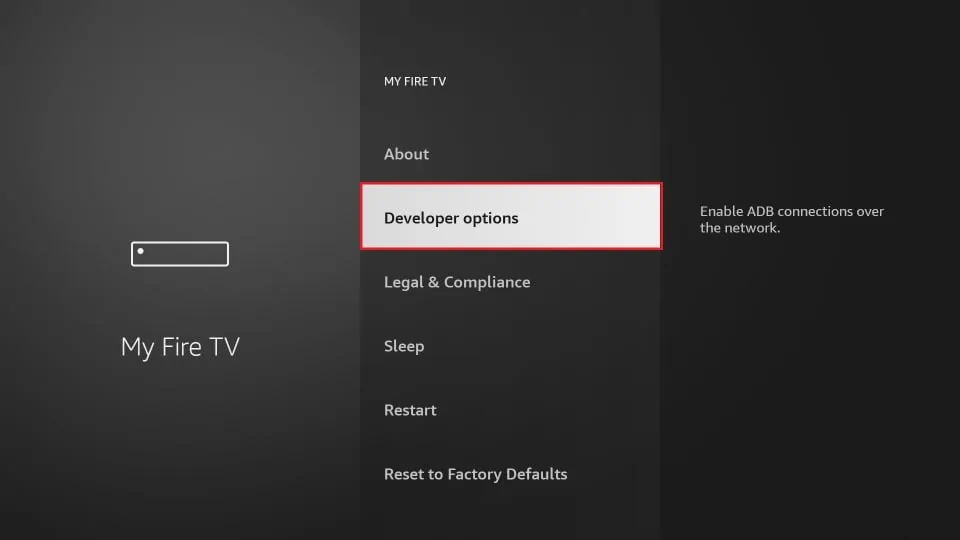
Enable Developer Options on your Firestick to allow the installation of third-party apps such as IPTV Smarters.
7. Click on “Install from Unknown Sources.”
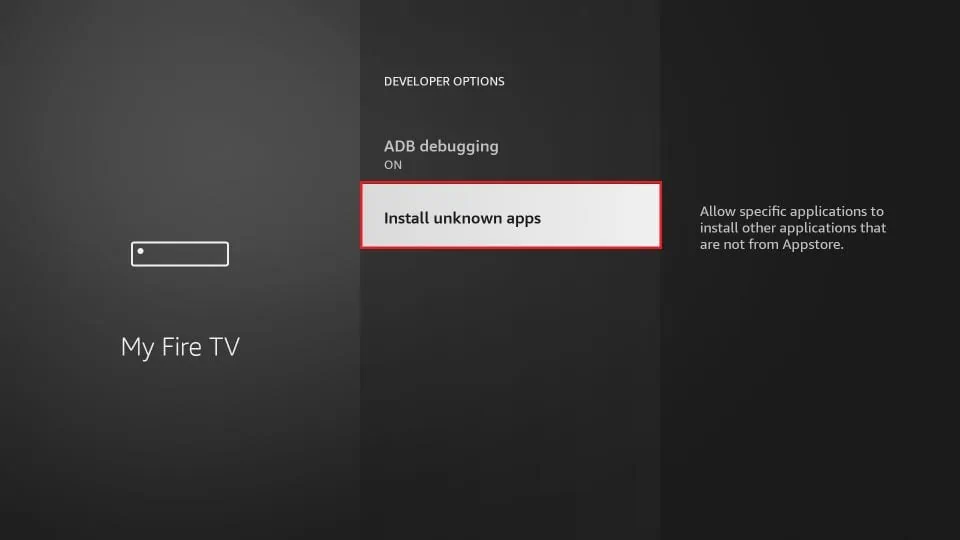
Enable the “Install Unknown Apps” setting on your Firestick to install IPTV Smarters.
8. Click on “Downloader” to change the status to “ON.”
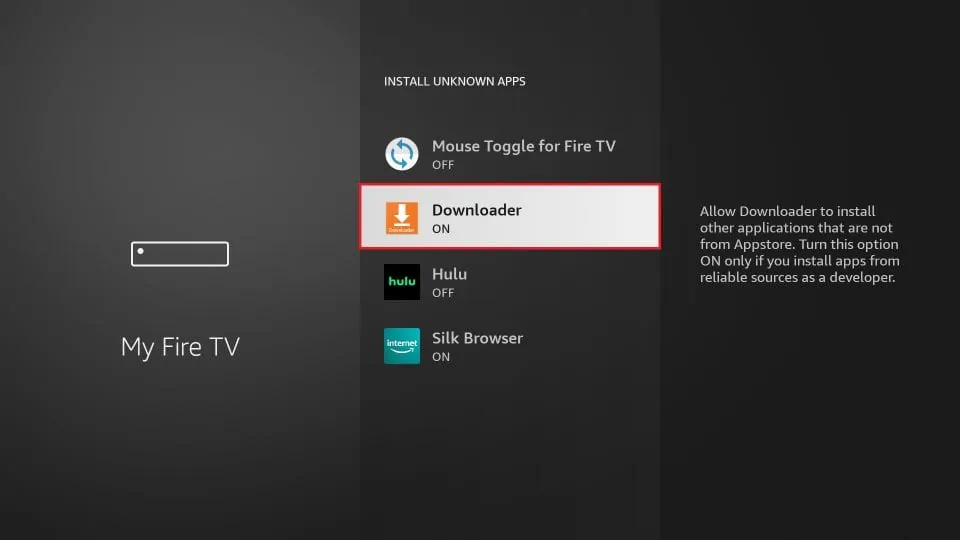
Enable the Downloader app on your Firestick to install IPTV Smarters.
You have now configured your Firestick settings to allow the installation of IPTV Smarters and other third-party apps. Follow the steps below:
9. You can now open the Downloader app.
When launching the app for the first time, a series of prompts will appear. Ignore them until you reach the following screen.
On this screen, click on the URL text field on the right side (make sure the “Home” option
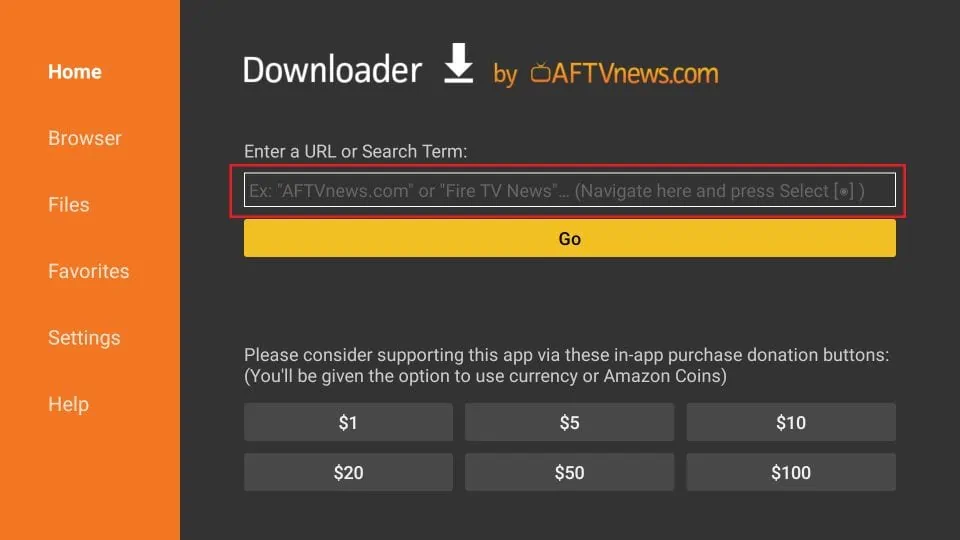
Use the Downloader app on your Firestick to enter a URL and download IPTV Smarters.
10. Go ahead and enter the following path into the field:
https://www.iptvsmarters.com/smarters.apk
Then click on “Go.”
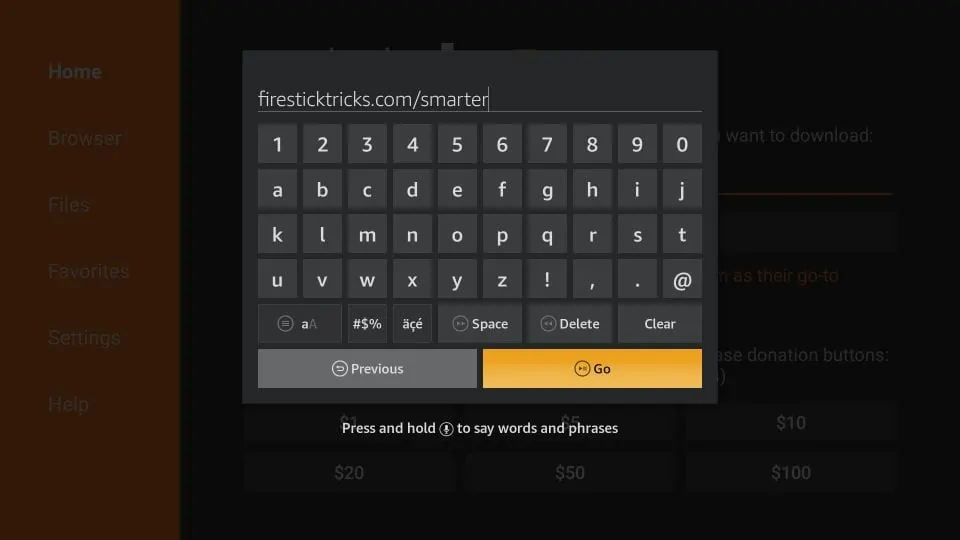
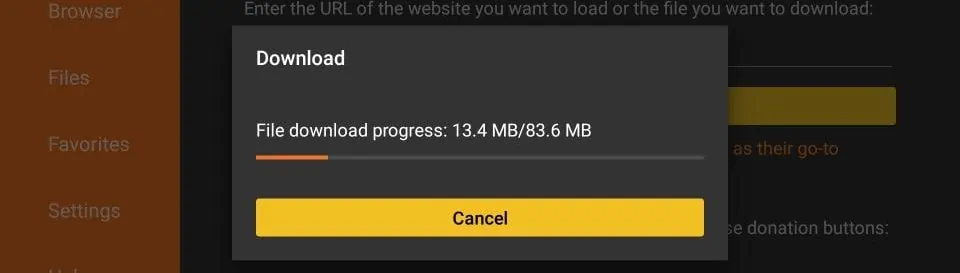
The Downloader app is downloading IPTV Smarters on your Firestick. Please wait until the process is completed.
12. Once the download is finished, the Downloader app will automatically run the APK file, and the installation process will begin.
Click on “Install.”
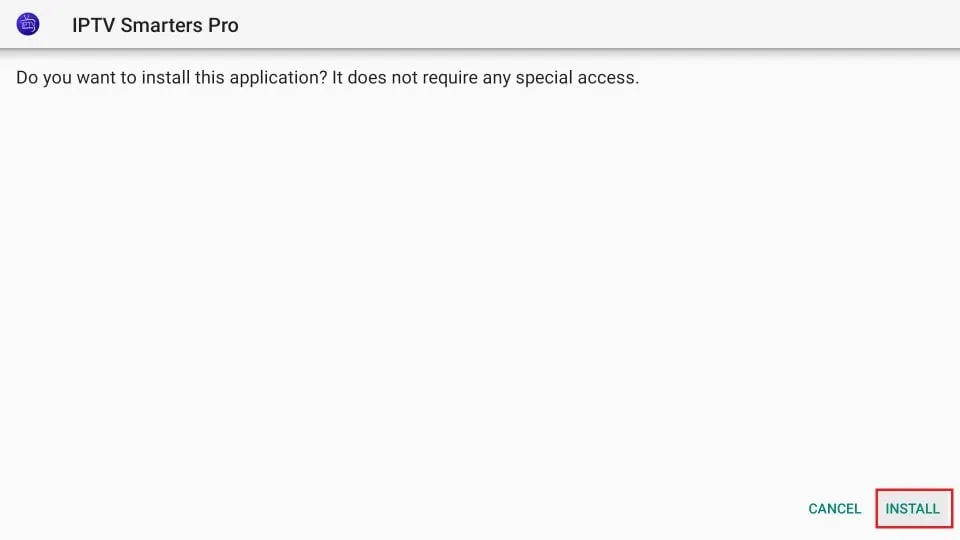
Click on “Install” to complete the installation of IPTV Smarters Pro on your Firestick.
13. Wait for the installation process to finish.
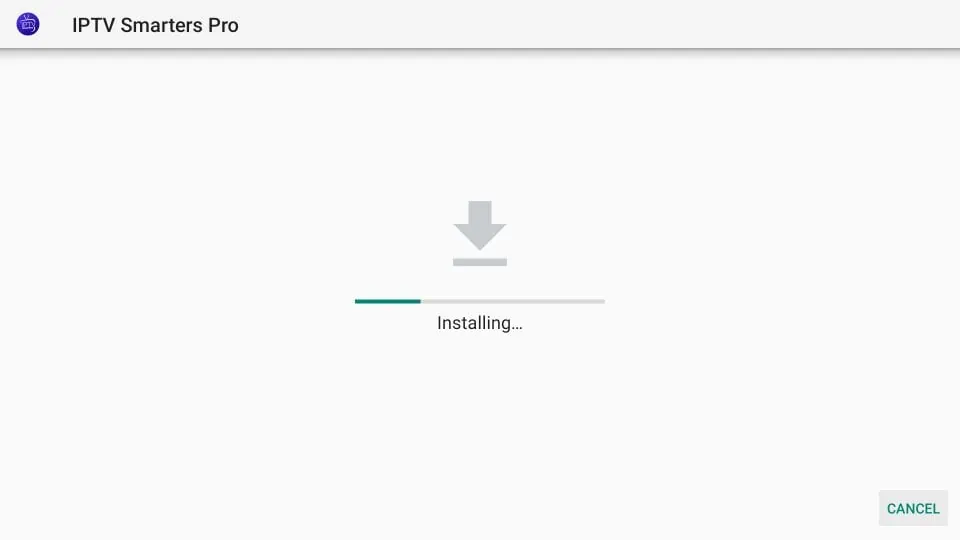
The installation of IPTV Smarters Pro on your Firestick is in progress. Please wait.
14. Once the installation is complete, you will see the message “App installed.”
You can now click “Open” to start using IPTV Smarters.
It is recommended to first click on “Done” so you can delete the APK file and free up some storage space on your Firestick.
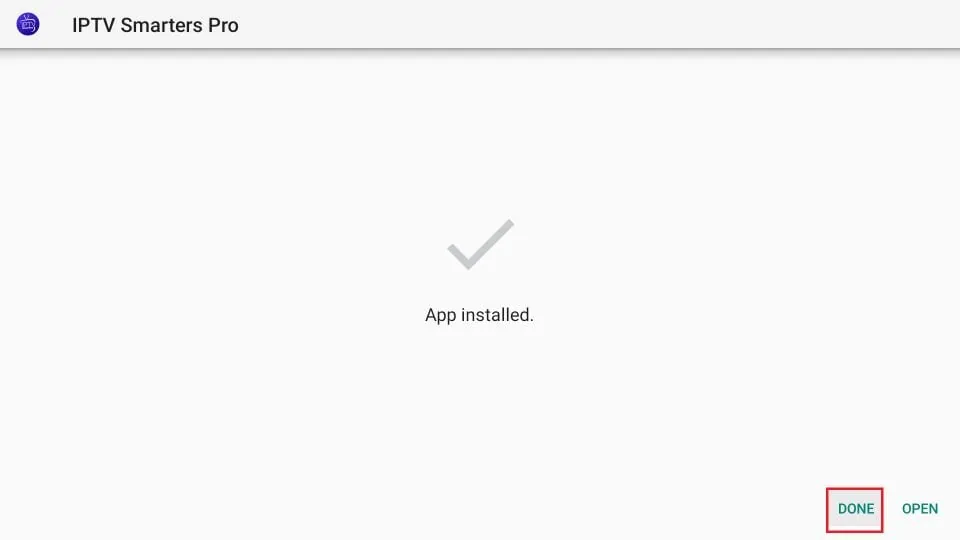
IPTV Smarters Pro has been successfully installed on your Firestick. Click on “Open” to launch the app.
15. If you clicked on “Done”, you will be taken back to the Downloader interface.
Click on “Delete.”
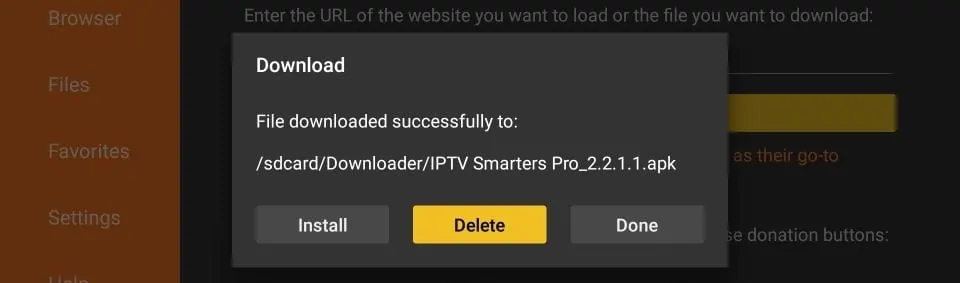
The IPTV Smarters Pro APK has been successfully downloaded. Click on “Install” to continue the installation on your Firestick.
16. Click “Delete” again.
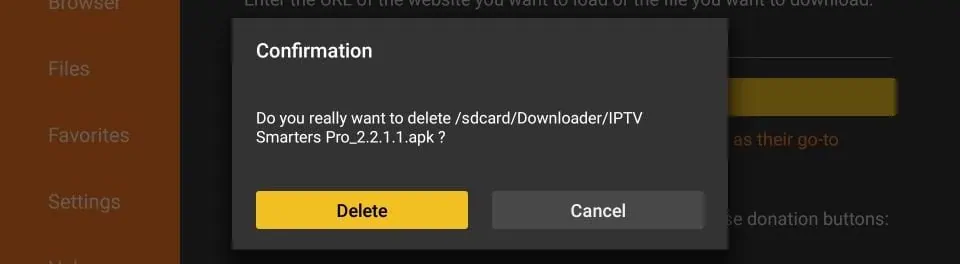
Confirm whether you want to delete the IPTV Smarters Pro APK file from your Firestick storage.
Great! You now have the IPTV Smarters app installed on your Firestick.
APPLE (iPhone/iPad/Apple TV)
ANDROID (Smartphone, Android Box)
PC/MAC (VLC Software)
STB Emulator
MAG250/254/256
ROKU Device
How to Install IPTV on Roku Using a Simple Trick
This tutorial provides step-by-step instructions for installing IPTV on Roku. Using a Roku device, we need to sideload IPTV onto the device. The following instructions require the use of a computer to download the IPTV app file and add it to your Roku streaming device.
If you are using another IPTV player such as TiviMate, you can also watch IPTV on Roku by casting it to your Roku device. IPTV Smarters is one of the best IPTV players, compatible with hundreds of IPTV services that use a server URL.
Anyway, let’s get into how to install IPTV on Roku. I have divided the instructions into four parts for easier understanding:
- Part 1: Enable Developer Options on Roku
- Part 2: Add the IPTV Smarters Channel
- Part 3: Download the IPTV Smarters package on your computer
- Part 4: Install IPTV Smarters on Roku
Don’t worry, the process is easier than it sounds. Let’s begin.
Enable Developer Options on Roku
1. Start your Roku by switching to the HDMI input on your TV.
2. Using your Roku remote, press the following buttons in this order:
Home button ×3, Up ×2, Right ×1, Left ×1, Right ×1, Left ×1, Right ×1.3. If done correctly, the Developer Options menu will appear on your Roku TV screen.
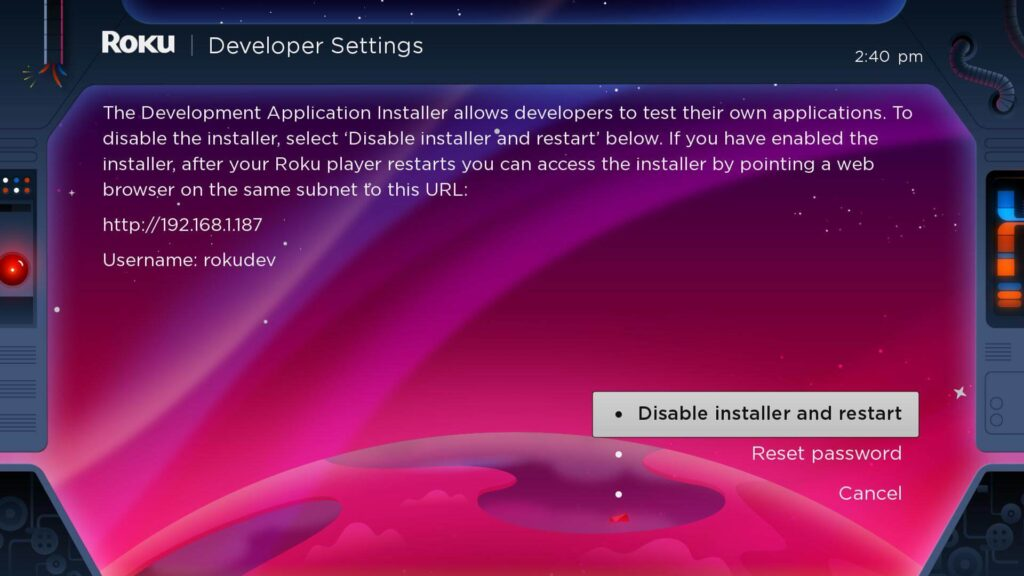
Enable Roku Developer Mode to install applications via a web browser.
4. Write down the IP address displayed on the screen.
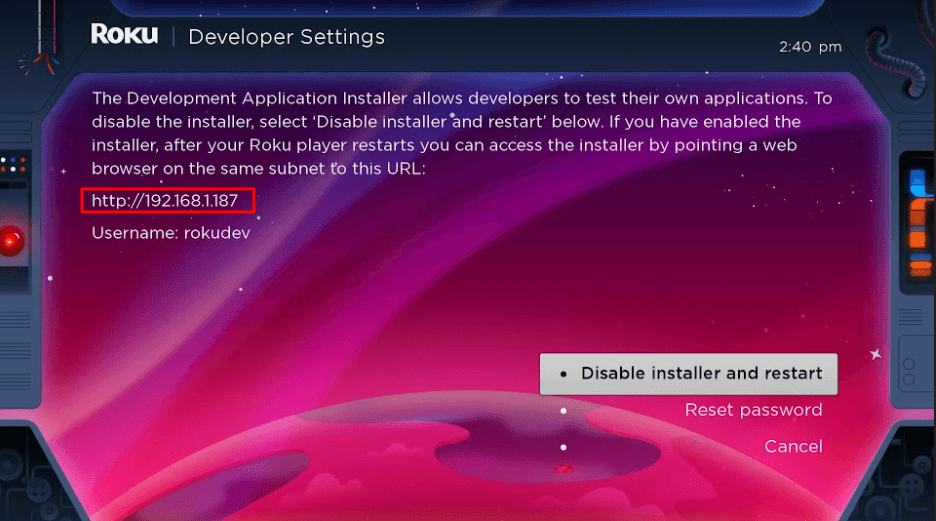
Use the provided URL in a web browser to access the Roku Developer Installer.
5. Select “Enable installer and restart” (in my case it shows “Disable” because I have already done it).
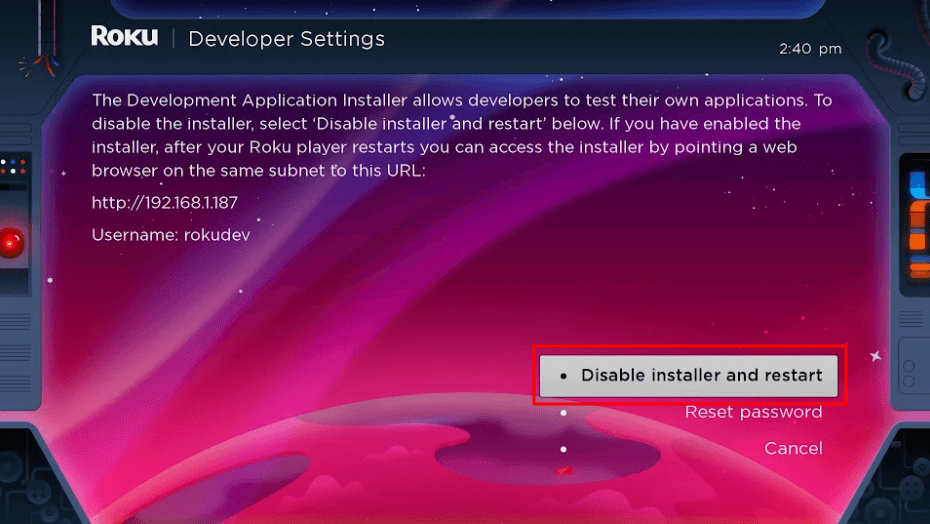
Select “Disable installer and restart” to exit Roku Developer Mode and reboot the device.
6. Scroll through the Developer Tools License Agreement and select “I Agree.”
7. Create a web server password using the on-screen keyboard. You will need this password for a later step.
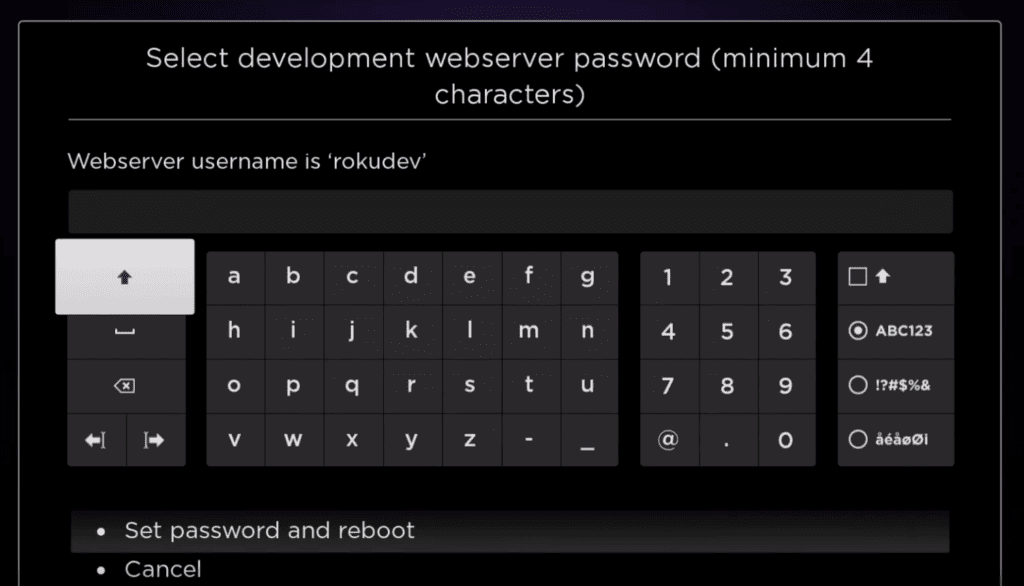
Enter a secure password to enable Developer Mode on Roku and access the web server.
8. Select “Set Password and Restart.”
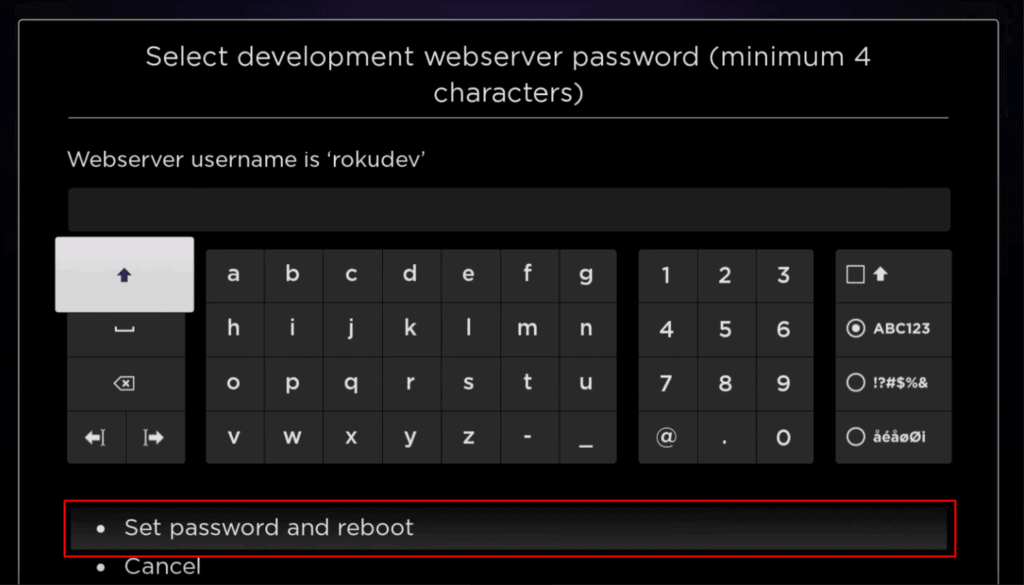
Enter a password and select “Set Password and Restart” to enable Developer Mode on Roku.
Part 2: Add the IPTV Smarters Channel
1. Go to your computer and open any web browser, then visit my.roku.com.
2. Enter your Roku account username and password, then click “Submit.”
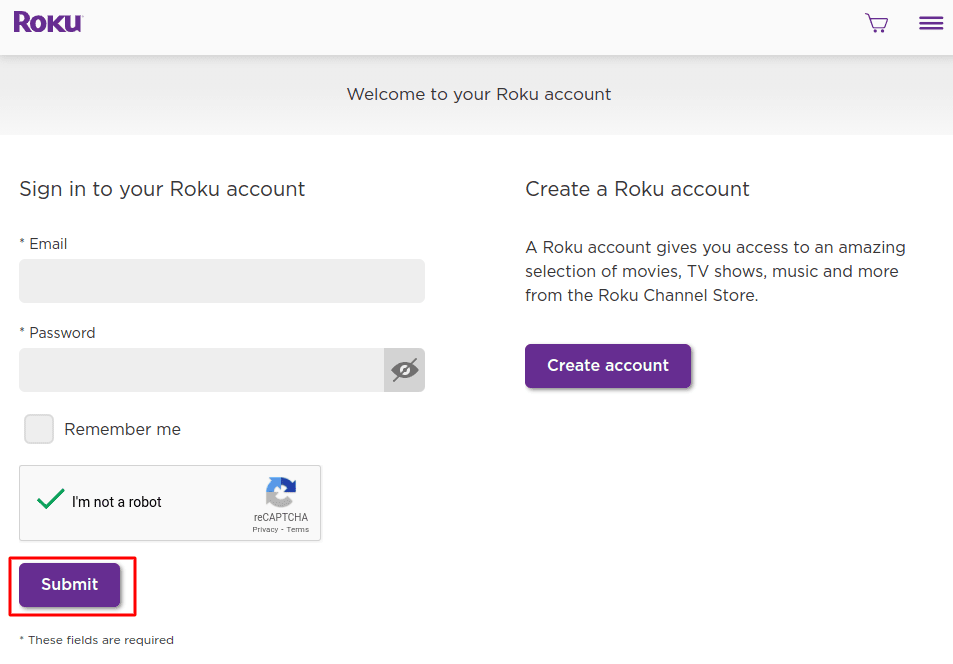
Enter your Roku account details or create a new account to access streaming services.
3. After logging in, select “Add channel with a code” under “Manage account.”
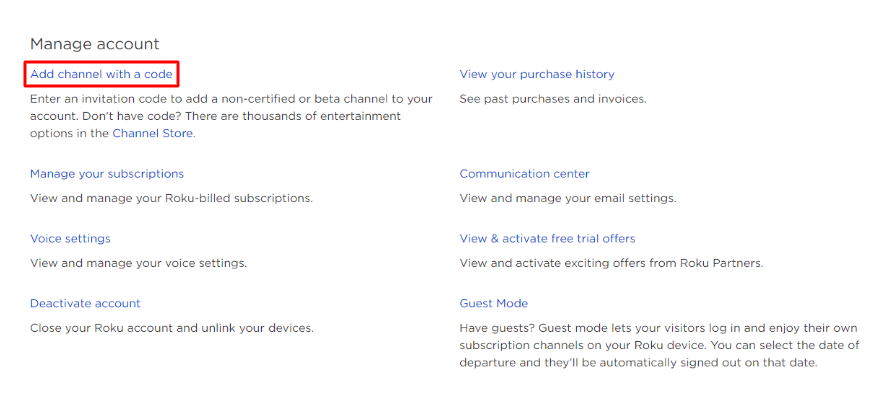
Enter a code to add an unverified or beta channel to your Roku account.
4. Enter iptvsmarters in the field. Make sure you type it exactly as shown.
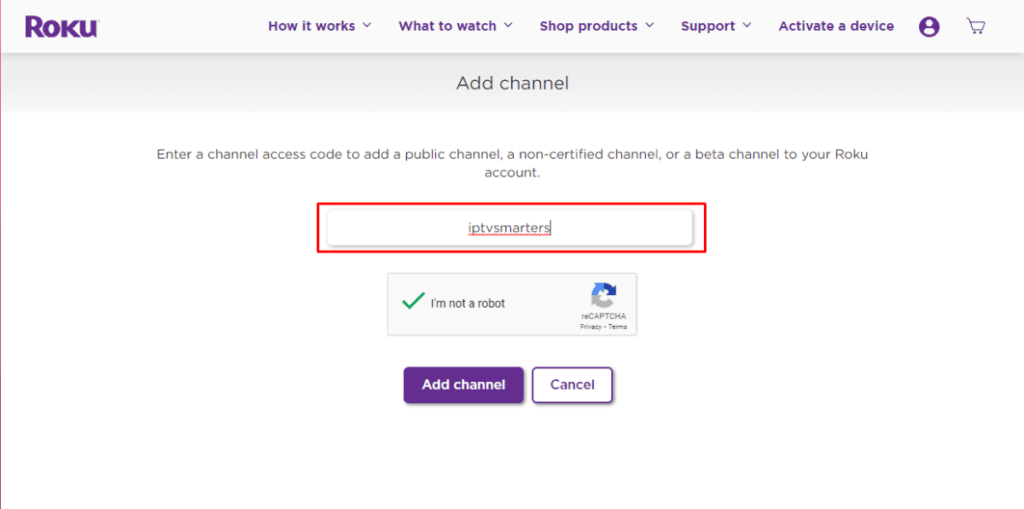
Enter the IPTV Smarters channel code to add it to your Roku account.
5. Select “Add Channel” to add it to your Roku.

Enter the IPTV Smarters channel code and click “Add Channel” to confirm the installation on Roku.
6. Click OK on the warning message that appears.
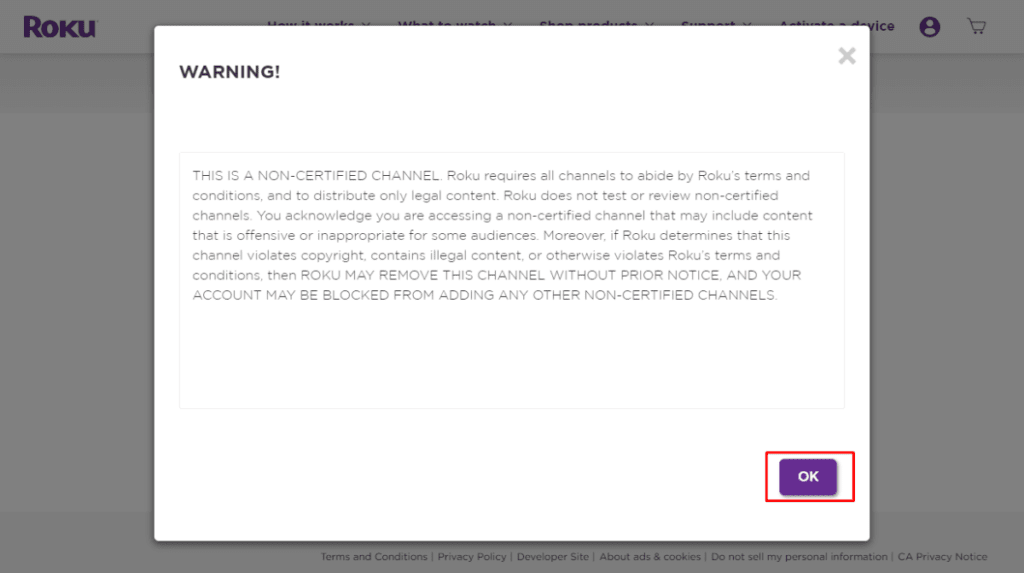
This warning appears when adding an unverified channel on Roku. Click “OK” to continue.
7. Select “Yes, add channel” in the popup that appears next.
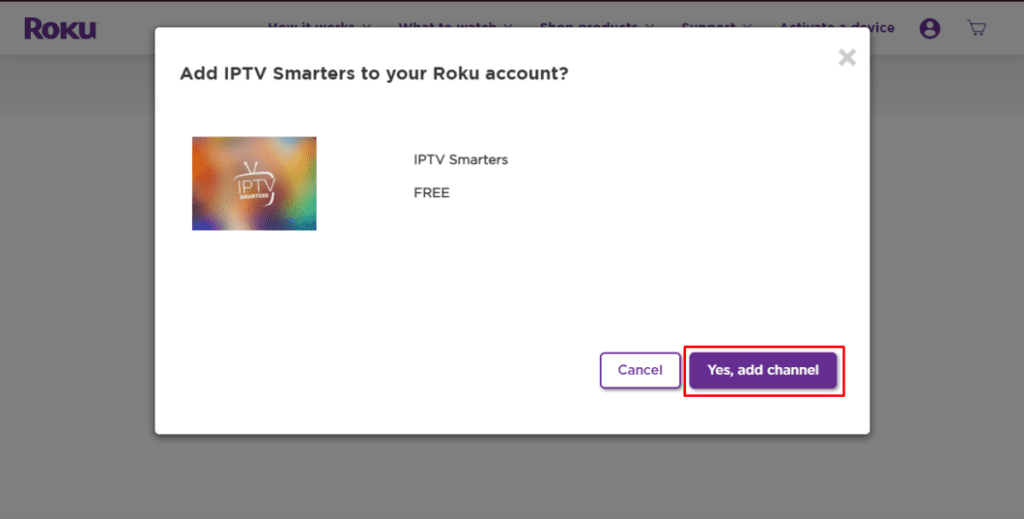
Click “Yes, add channel” to add IPTV Smarters to your Roku account for free.
Part 3: Download the IPTV Smarters Package on Your Computer
Now it’s time to download the IPTV Smarters file to your computer.
1. On your computer, go to the following link, and the download should start automatically:
https://www.whmcssmarters.com/clients/dl.php?type=d&id=108Note: FireStickTricks.com does not host or distribute this APK. The link redirects to the website where it is hosted.
2. Save the IPTV Smarters package in an easily accessible location on your computer (you will need to navigate to this location shortly). In this example, it is saved on the Desktop.
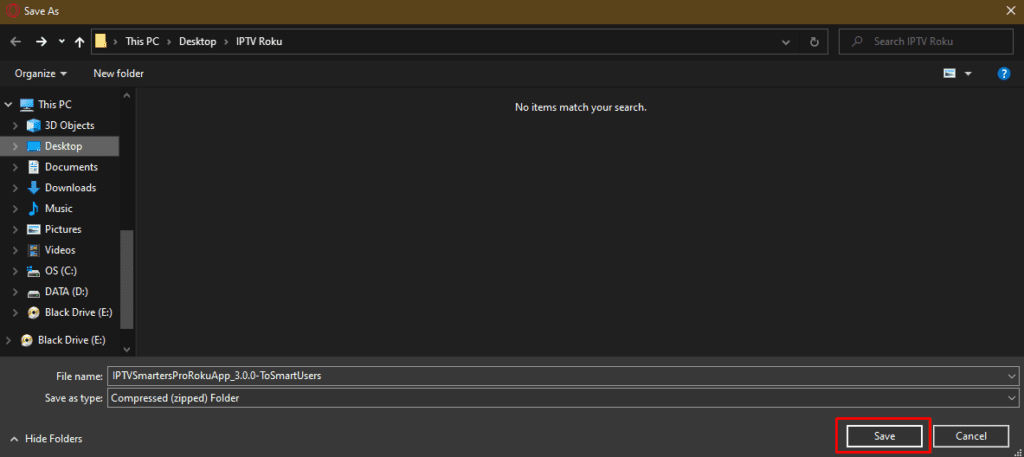
Save the IPTV Smarters Pro Roku app as a compressed folder before installation.
Part 4: Install IPTV Smarters on Roku
1. On your computer, open any web browser. In the address bar, enter the IP address of your Roku device that you noted earlier.
2. A login window will appear. Enter “rokudev” as the username. Enter the web server password you created earlier as the password. Finally, click “Log In.”
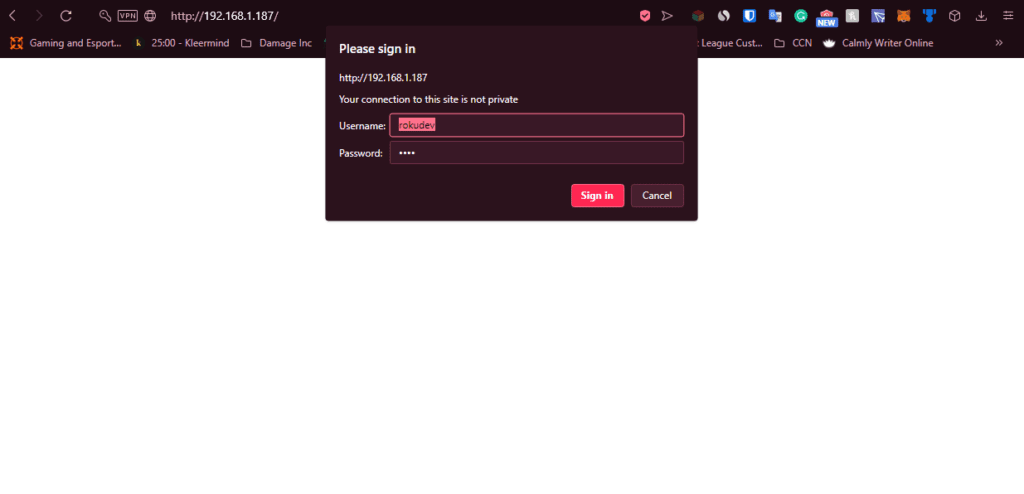
Enter “rokudev” as the username and the assigned password to access Roku Developer Mode.
3. Click “Upload” on the next page.
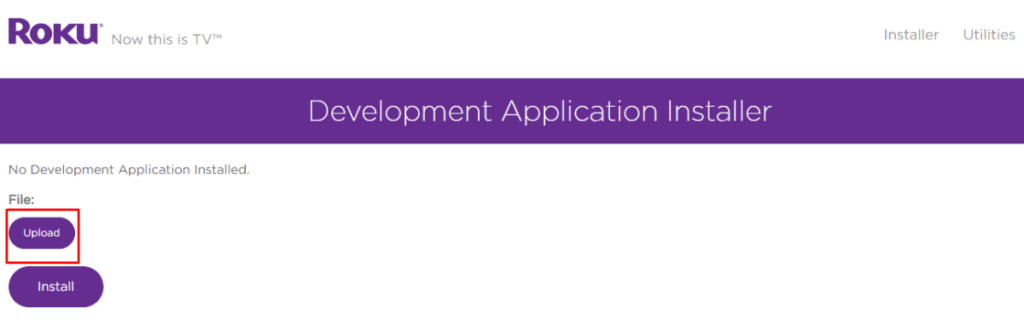
Click “Upload” to select the file before installing a Roku developer application.
4. Navigate to the location where you downloaded the IPTV Smarters package (in this example, the Desktop). Select the downloaded folder and click “Open.”
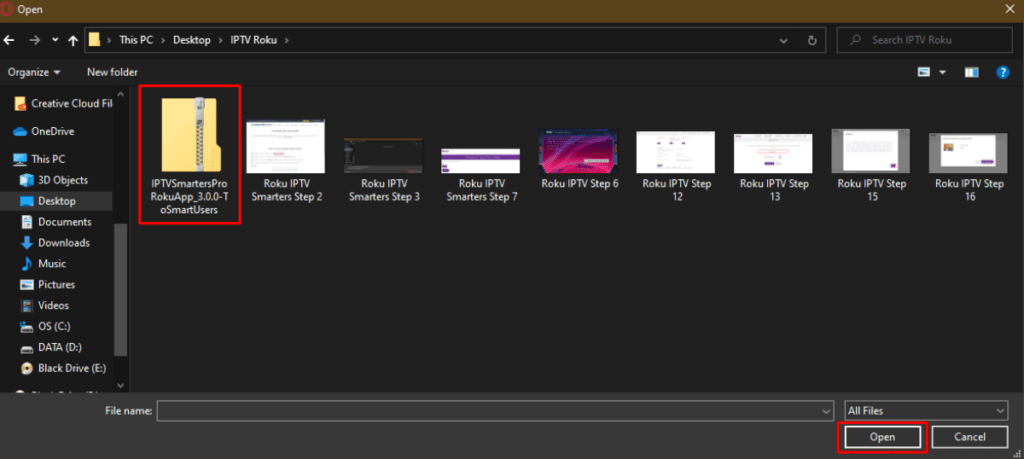
Select the IPTV Smarters Pro ZIP file and click “Open” to continue the installation on Roku.
5. Click “Install” once the file has been uploaded.

Click “Install” to complete the installation of IPTV Smarters Pro on Roku.
6. If you see this screen, you have done it correctly!
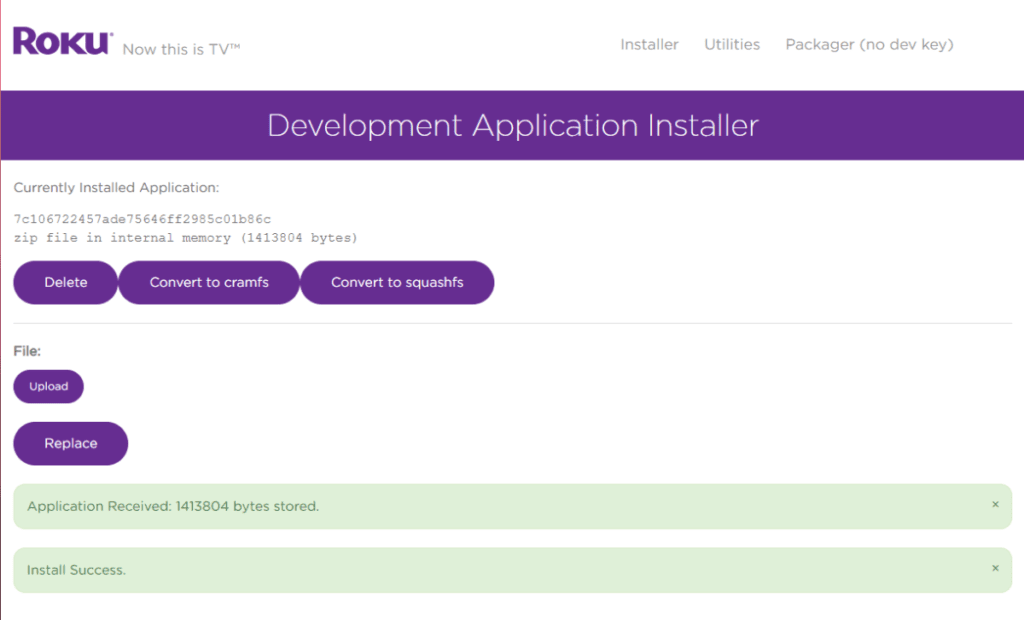
The IPTV Smarters app has been successfully installed on Roku via Developer Mode.
7. Return to your Roku device, and IPTV Smarters will appear on your TV screen.
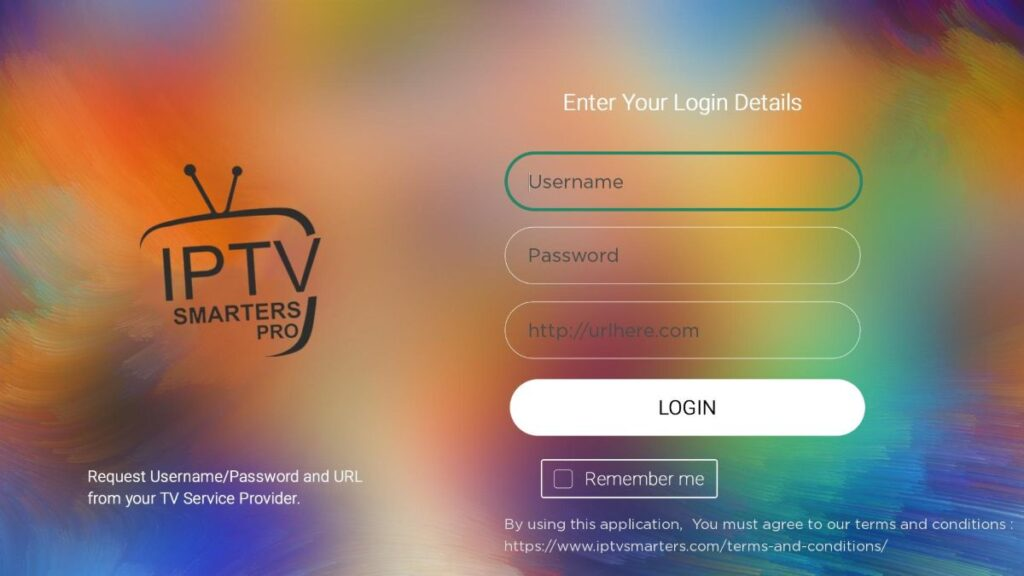
Enter your username, password, and server URL to log in to IPTV Smarters Pro.
8. Simply sign in using your IPTV Smarters login details and you’re in!
Steps to Watch IPTV on Roku via Screen Mirroring
To stream IPTV on your Roku-connected TV via screen mirroring, you need to install IPTV Smarters or Smart IPTV (another IPTV player) on your smartphone. Once you have one of these players, you can use the cast or screen mirroring option on your device.
With the cast/screen mirroring feature, you can stream content from any device on the same Wi-Fi network that has the IPTV player app installed to your Roku TV.
SONY TV
FIRESTICK: How to install TiviMate
Please follow the three parts below to install TiviMate on your FireStick.
Part 1: Download “Downloader” on FireStick
1. Open the FireStick home screen.
2. Go to the “Find” menu.
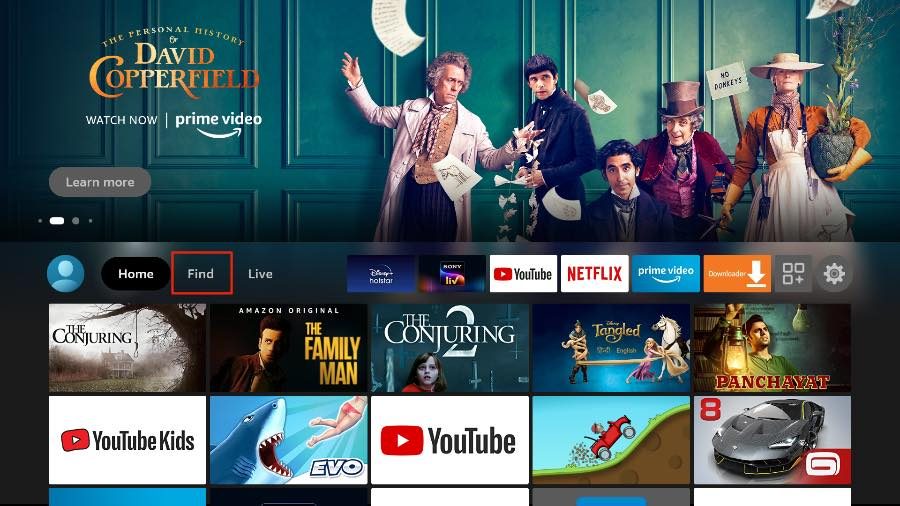
Fire TV home screen with various streaming apps, including IPTV setup options.
3. Select “Search” at the top.
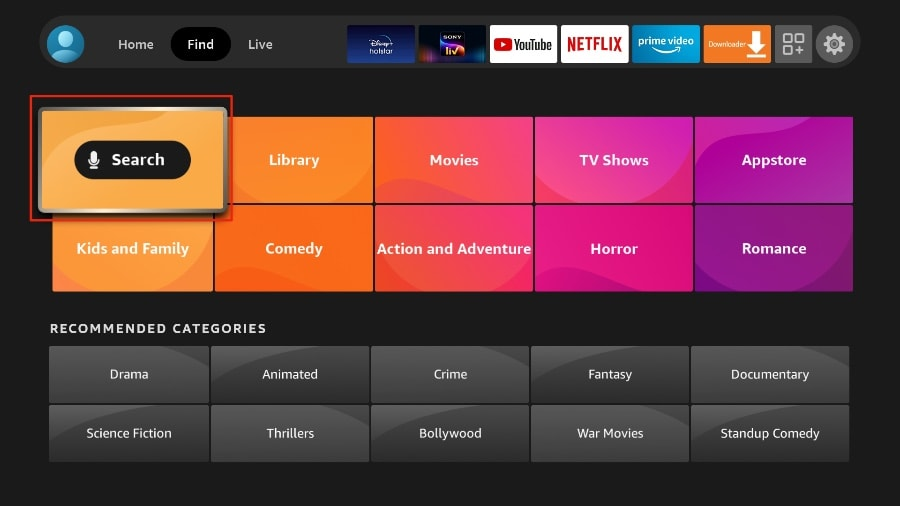
Use the Fire TV search function to find apps, including IPTV services.
4. A virtual keyboard will open on your FireStick.
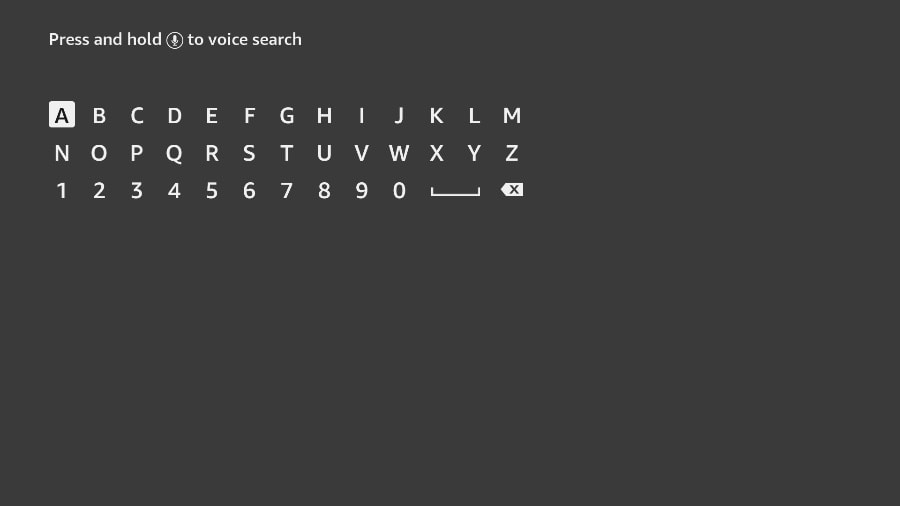
Use the Fire TV on-screen keyboard to search for apps like IPTV Smarters.
5. Start typing “Downloader.” Select “Downloader” when it appears in the suggestions below the keyboard.
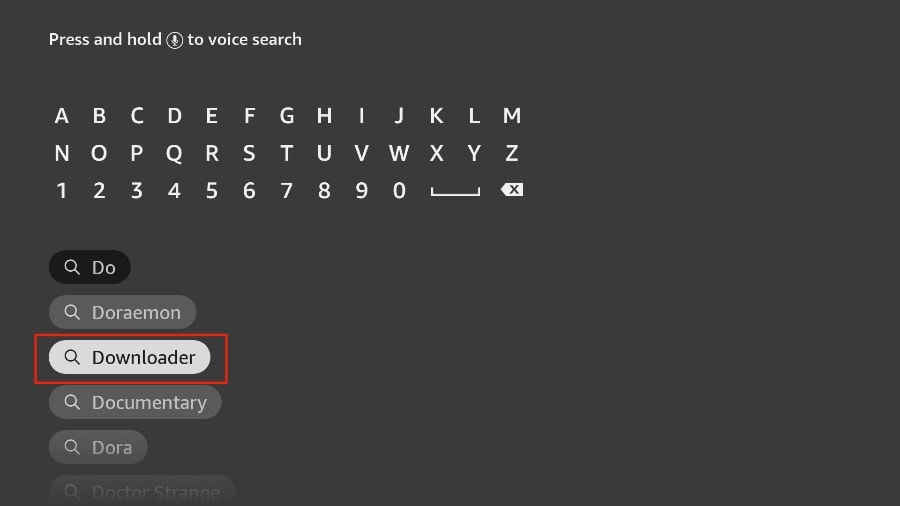
Search for the “Downloader” app on Fire TV to install IPTV services.
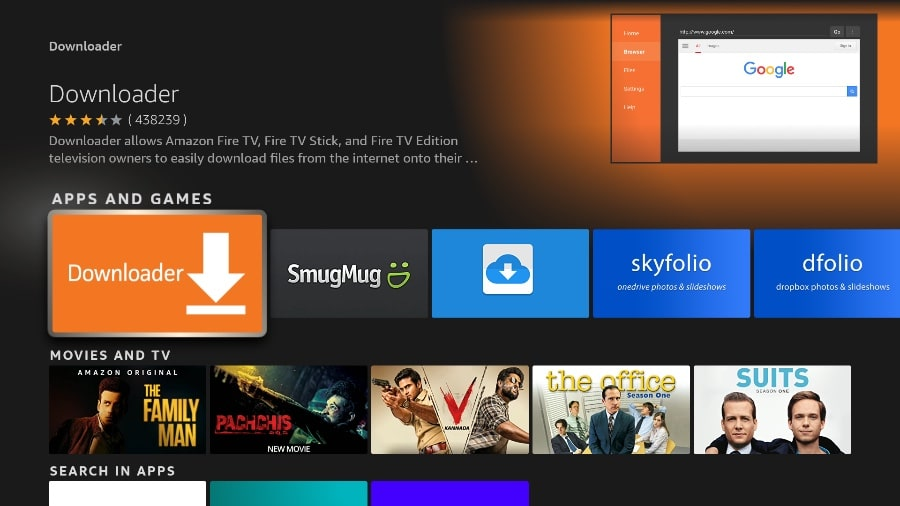
6. Select the “Downloader” app (recognizable by its orange background). Then, on the next screen, click “Download” or “Get.”
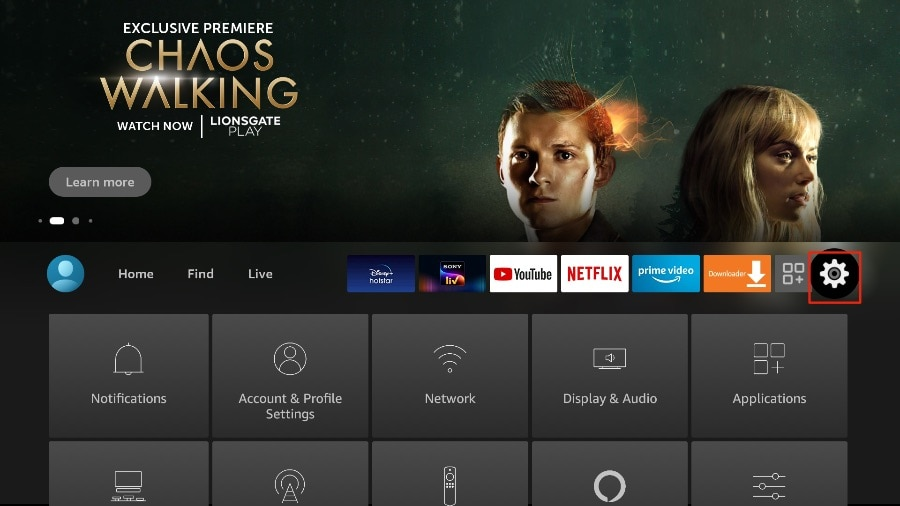
Open the Fire TV settings to adjust permissions for installing TiviMate on Firestick.
3. Scroll down and select “My Fire TV.”
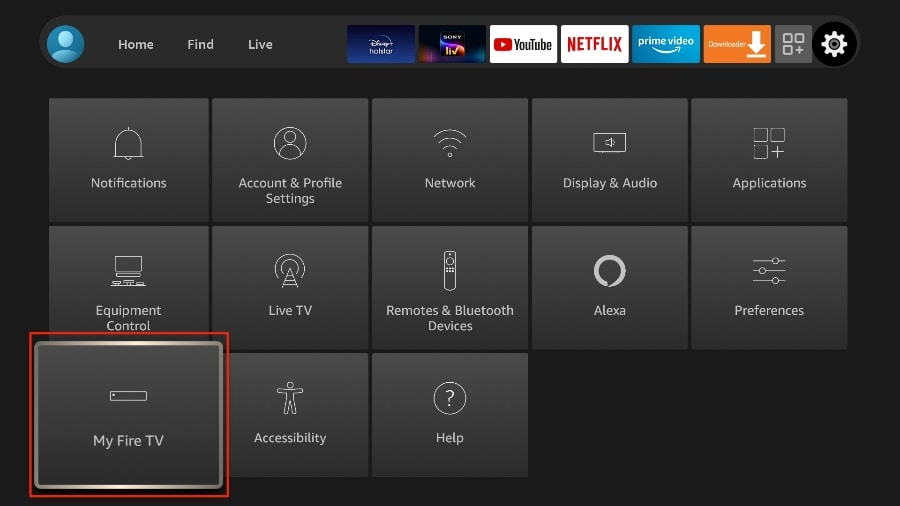
Navigate to “My Fire TV” in the Firestick settings to enable installation of IPTV apps like TiviMate.
4. Select “Developer Options.”
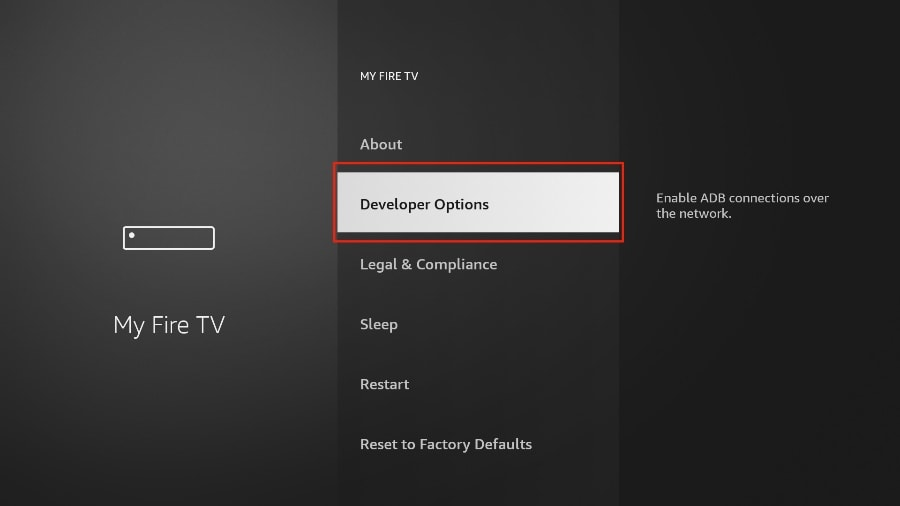
Enable Developer Options on Fire TV to allow installation of third-party apps like TiviMate.
5. Look for “Apps from Unknown Sources.” By default, it is disabled. Select it to turn it on.
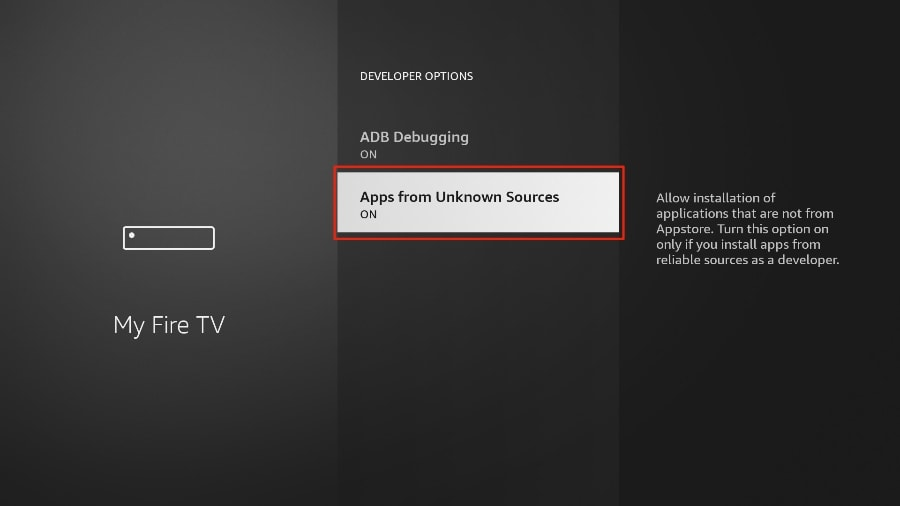
Enable “Apps from Unknown Sources” in Fire TV settings to install IPTV apps like TiviMate.
Now you can easily sideload any app installation file (APK) on your FireStick without issues. Follow the steps below to install the TiviMate APK using the Downloader app on FireStick.
Part 3: Use Downloader to Install TiviMate on FireStick
1. From the FireStick home screen, go to the “Apps” menu.
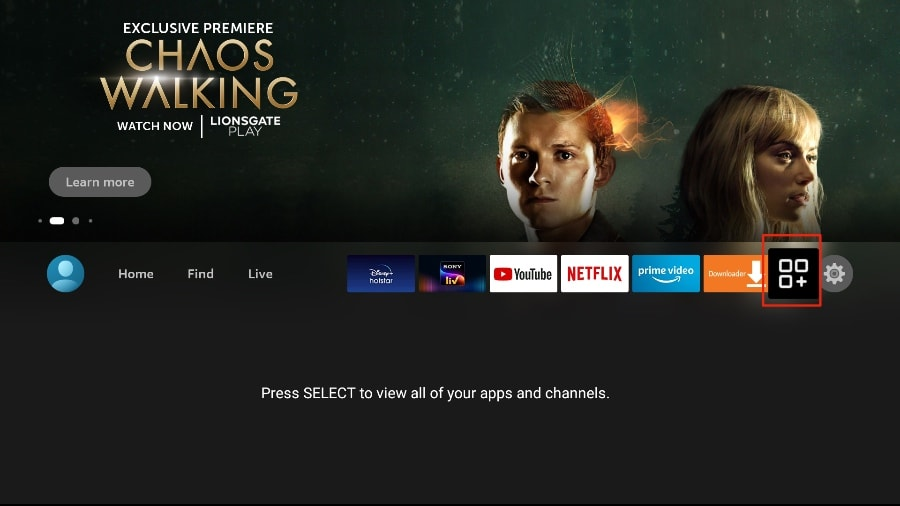
Open the Fire TV “Apps & Channels” menu to find and launch Downloader after installation.
2. Open the Downloader app and select the “Enter URL” field on the home screen.
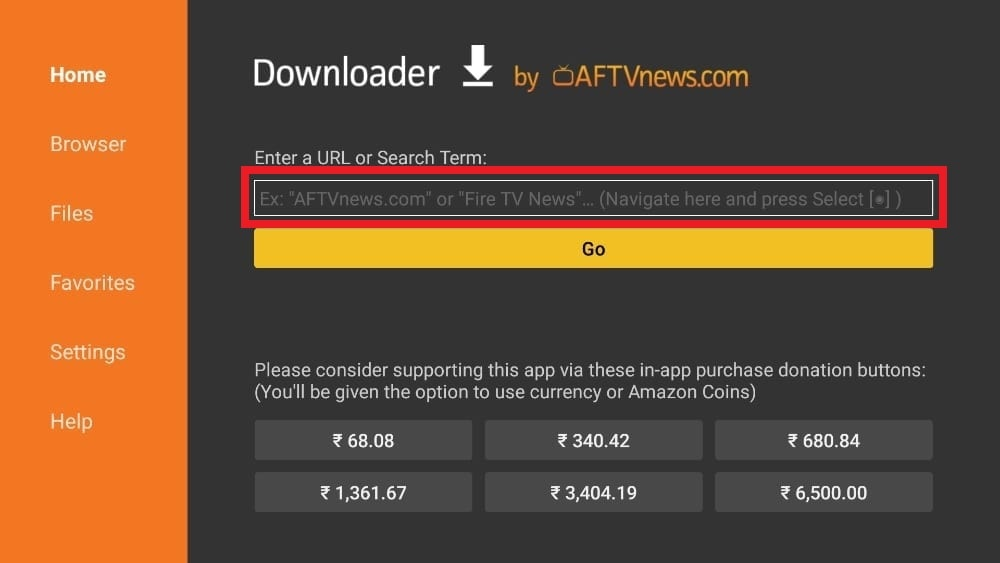
Use the Downloader app on Fire TV to enter a URL and download TiviMate for GetXtremeIPTV streaming.
3. A virtual keyboard will appear. Enter https://www.firesticktricks.com/tivi and press “Go” at the bottom.
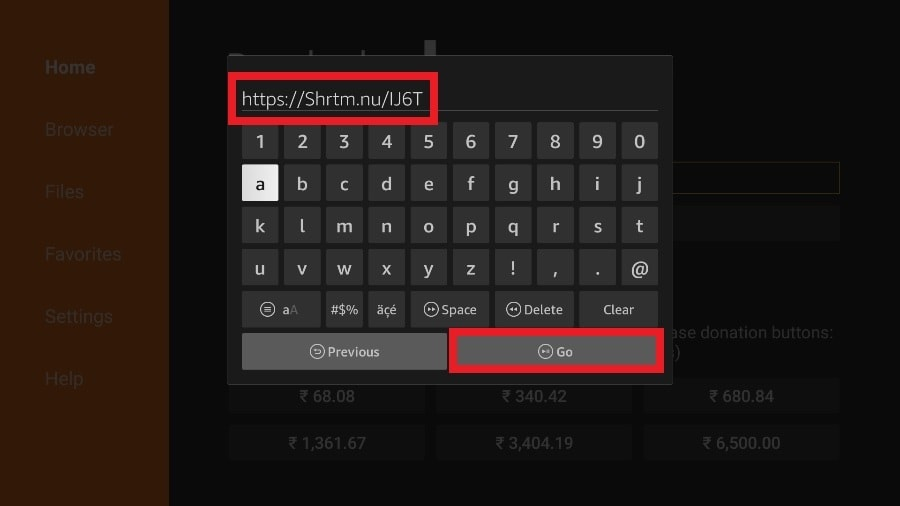
To install TiviMate on Firestick, enter the provided URL in the Downloader app and press “Go” to start the download.
4. Downloader will install the latest TiviMate APK on your FireStick. It is approximately 11 MB in size.
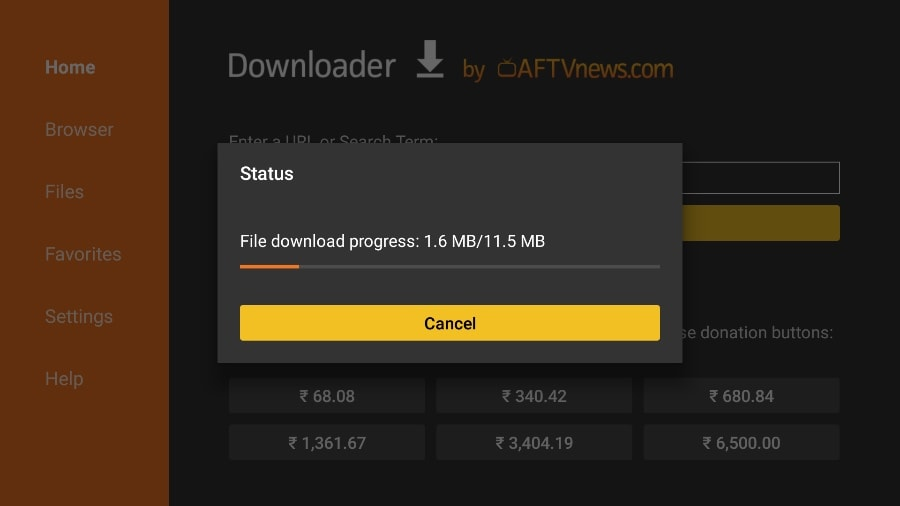
The Downloader app is downloading the latest TiviMate APK on Firestick. This step is necessary to set up IPTV services such as getxtremeiptv.
5. Click “Install” when prompted.
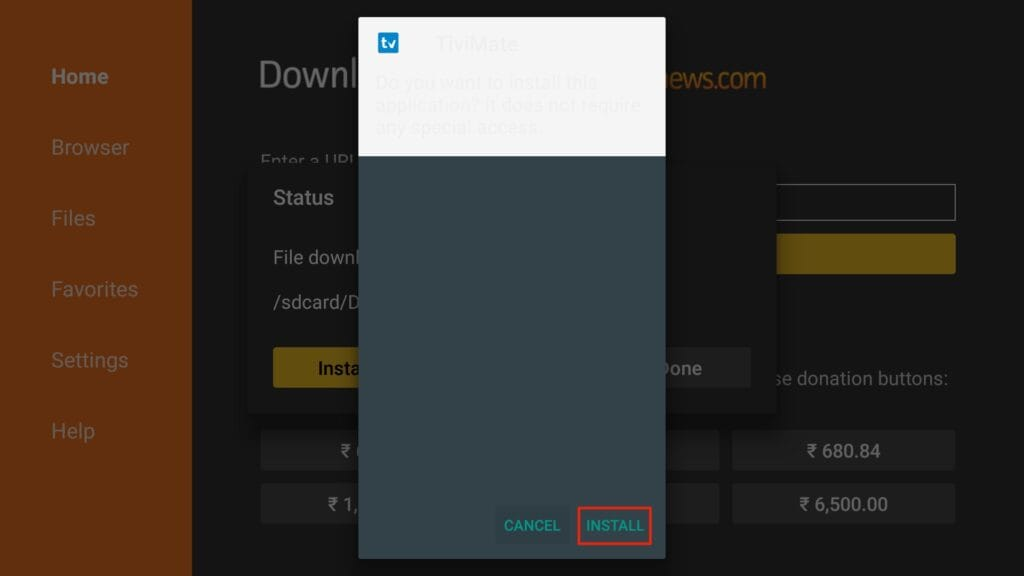
The TiviMate APK installation window appears on Firestick. Click “Install” to proceed with setting up IPTV services such as getxtremeiptv.
6. After installation, you can delete the APK file from your device.
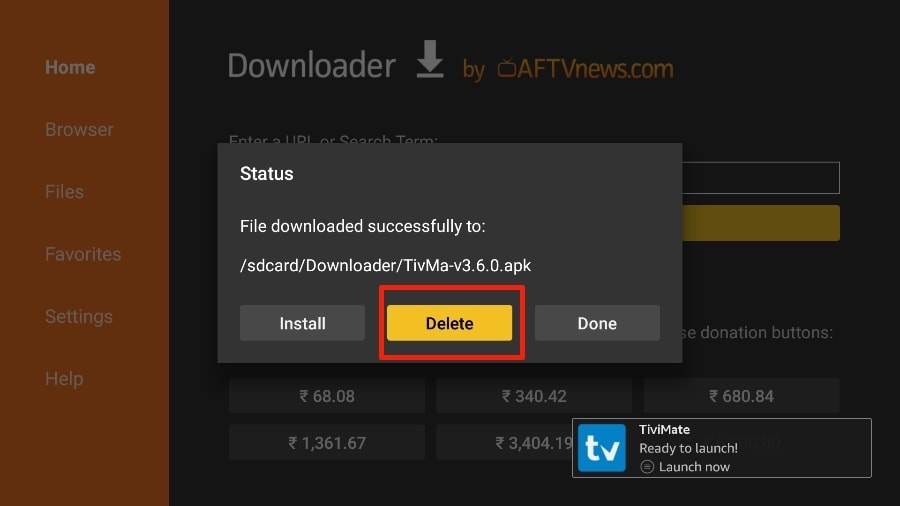
Once TiviMate is installed, users can select “Delete” to remove the APK file from the Firestick. This helps optimize storage for IPTV services such as getxtremeiptv.
I recommend that our readers delete the APK file on the FireStick, as it no longer serves any purpose. It has already been used to install TiviMate. In general, it is best to keep your FireStick free of unnecessary files and media. When storage space runs low, it can slow down the device’s performance.
That’s it! You have successfully installed the TiviMate APK on your FireStick. Now you can enjoy hundreds of live channels, movies, and TV series on your FireStick. Before we discuss the app, let’s make a quick adjustment for convenience.
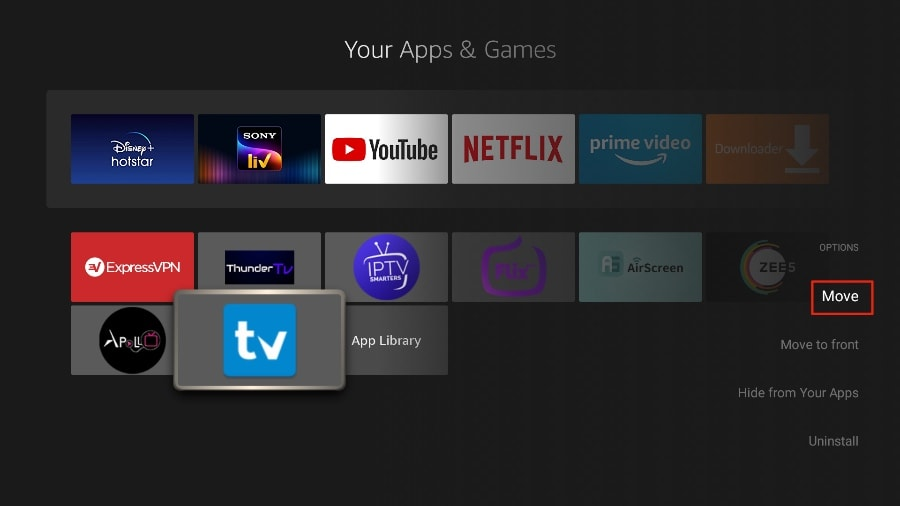
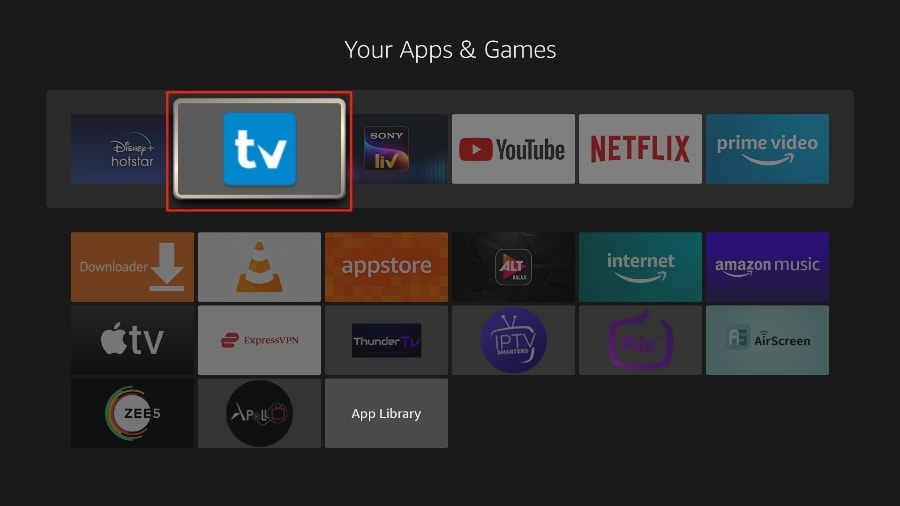
TiviMate IPTV Player is an addictive app that you will likely use frequently. I recommend placing the app directly on the FireStick home screen for easy access. Follow the steps below to do this:
1. Press and hold the Home button on your FireStick remote.
2. On the next screen, select “Apps.”
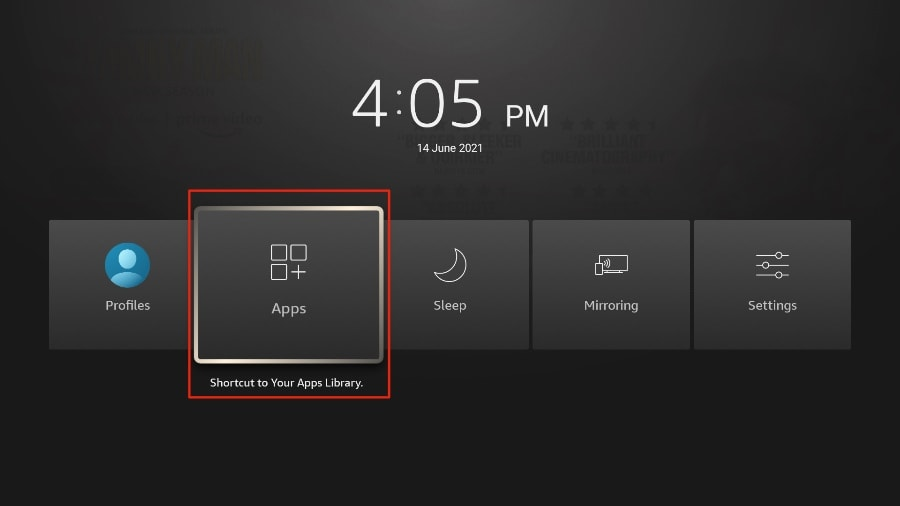
For quick access to TiviMate on Firestick, press the Home button and go to the “Apps” section. Perfect for IPTV services such as getxtremeiptv.
3. Scroll to “TiviMate IPTV Player”, but do not select it. Instead, press the “Options” button on your FireStick remote.
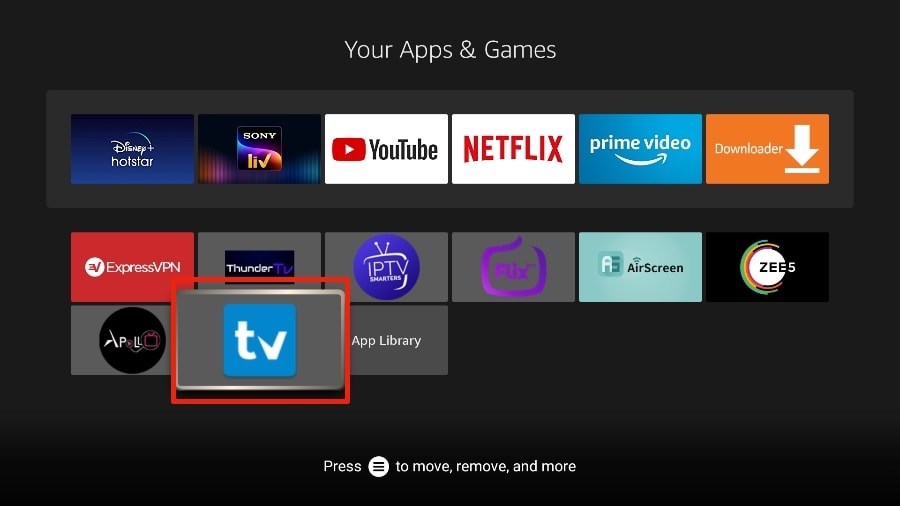
HOW TO SET UP TIVIMATE
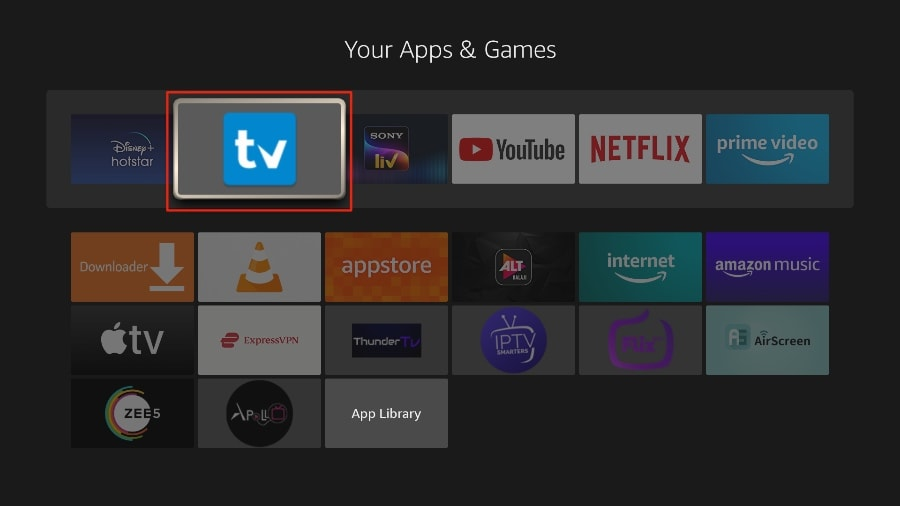
1. Open the TiviMate app.
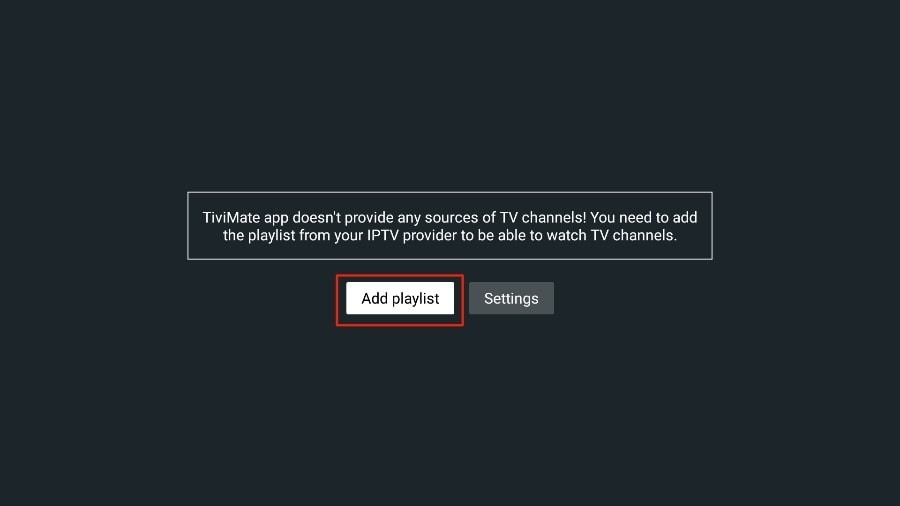
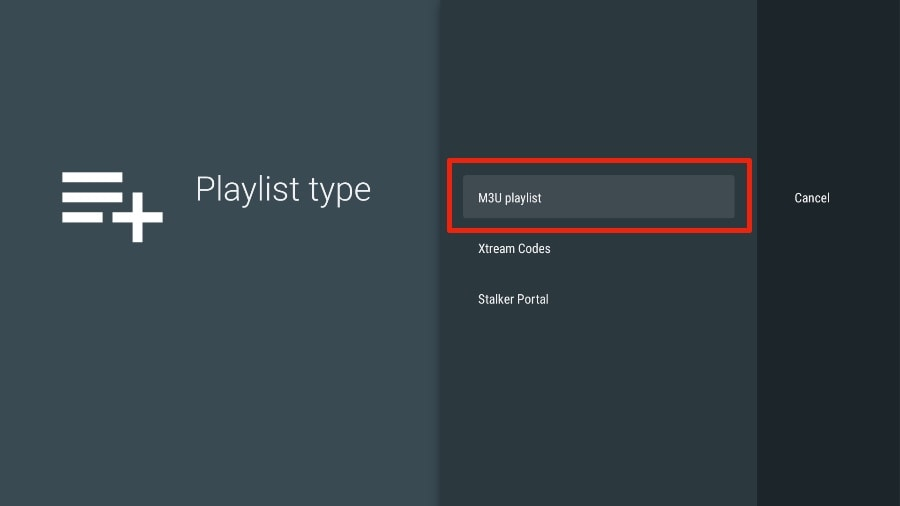
To use IPTV on Firestick with TiviMate, select ‘M3U Playlist’ and enter your IPTV credentials. getxtremeiptv users can retrieve their M3U link from the provider.
In this article, we will use an M3U link to play an IPTV service in the TiviMate app. When you sign up for our IPTV service, you will receive an email with the corresponding login information and an M3U link. If you do not receive an M3U link, please contact our customer support.
4. TiviMate will ask for your M3U link. Enter your M3U link and then press “Next”.
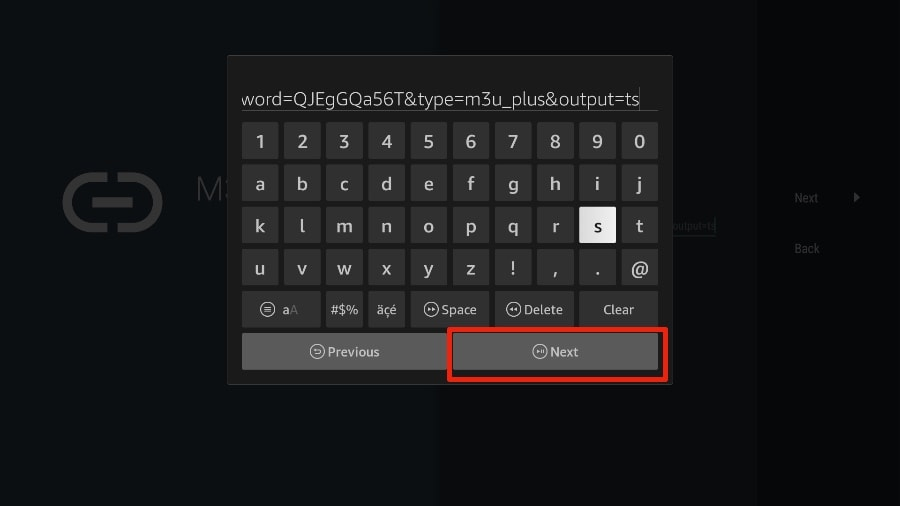
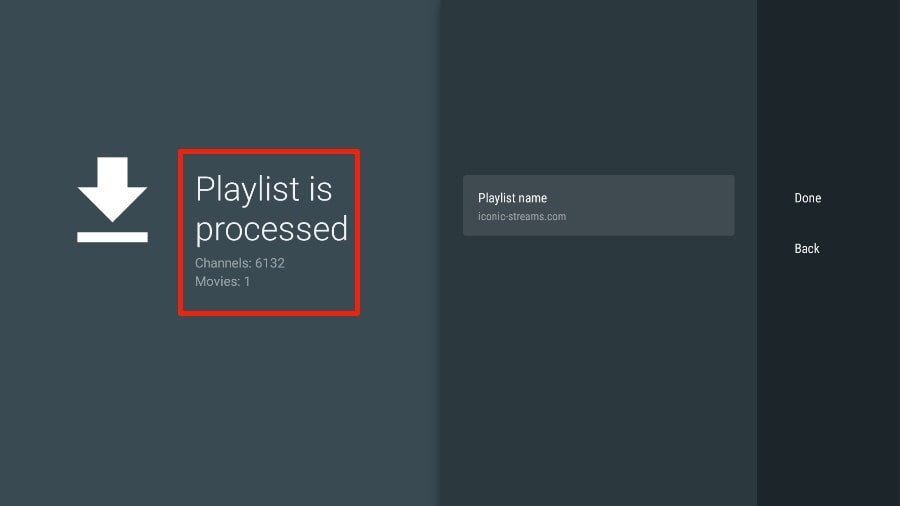
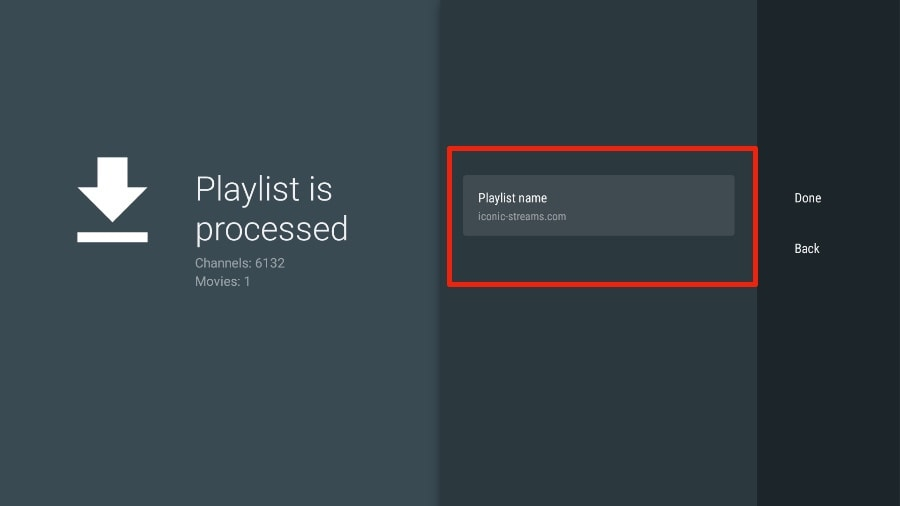
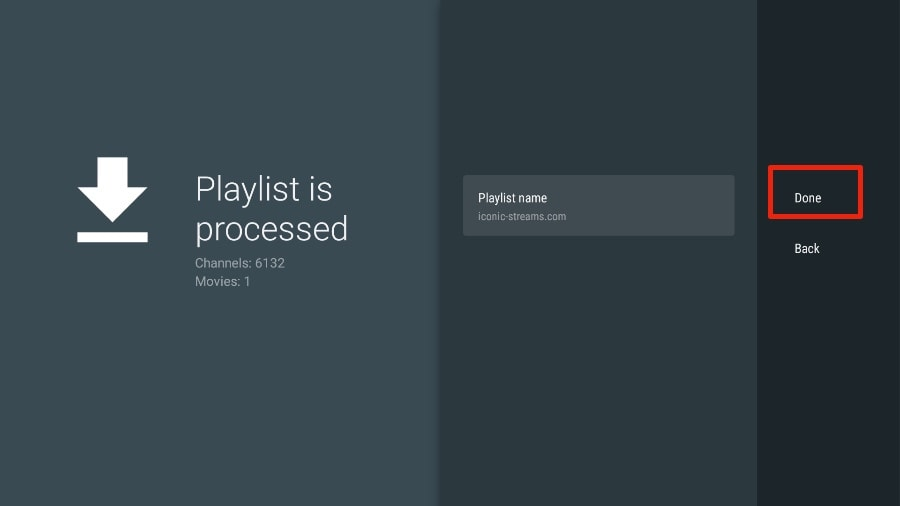
The final step in setting up TiviMate on Firestick, where the user confirms the IPTV playlist for getxtremeiptv by selecting ‘Done’.
After one or two minutes, you will see the IPTV service content appear in the TiviMate app.
Our IPTV service includes a dedicated EPG (Electronic Program Guide), as shown below.
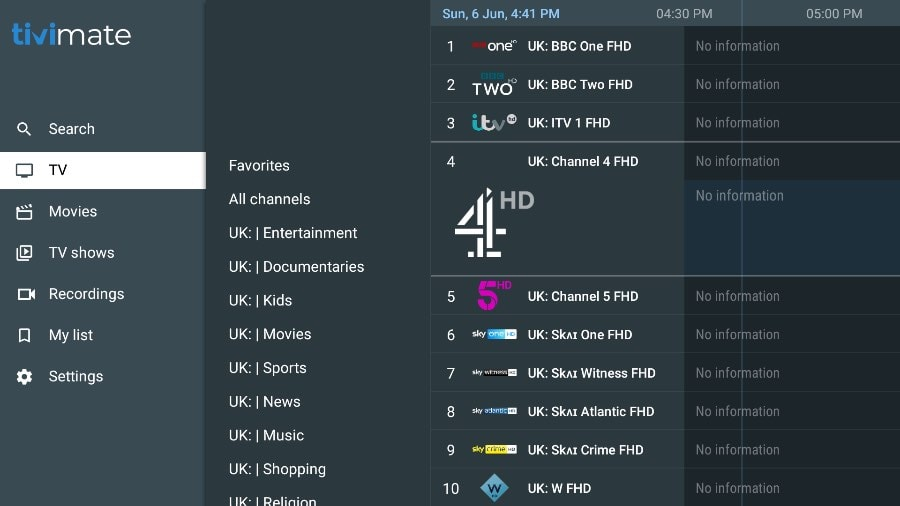
The TiviMate IPTV app displays an Electronic Program Guide (EPG) and a list of UK channels to help users navigate through IPTV services on getxtremeiptv.
If you do not see an EPG in the TiviMate app, you should check the app’s settings to see if it is enabled.
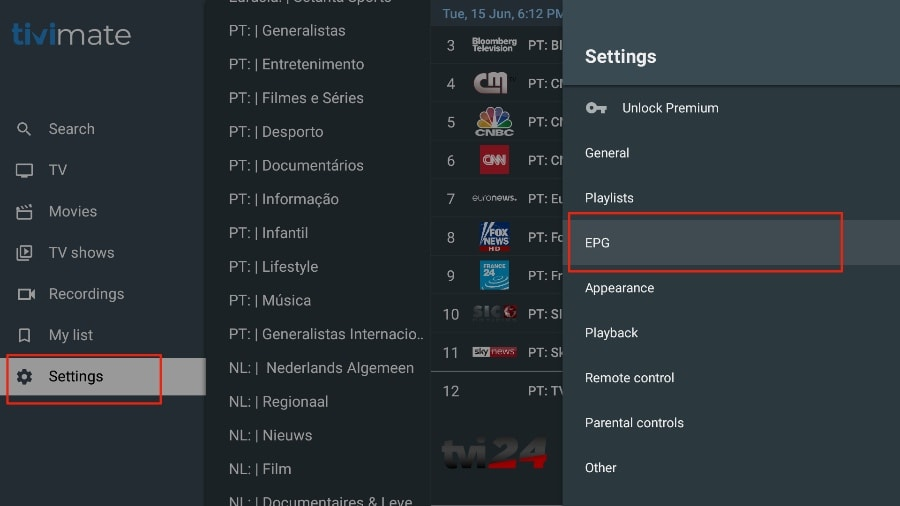
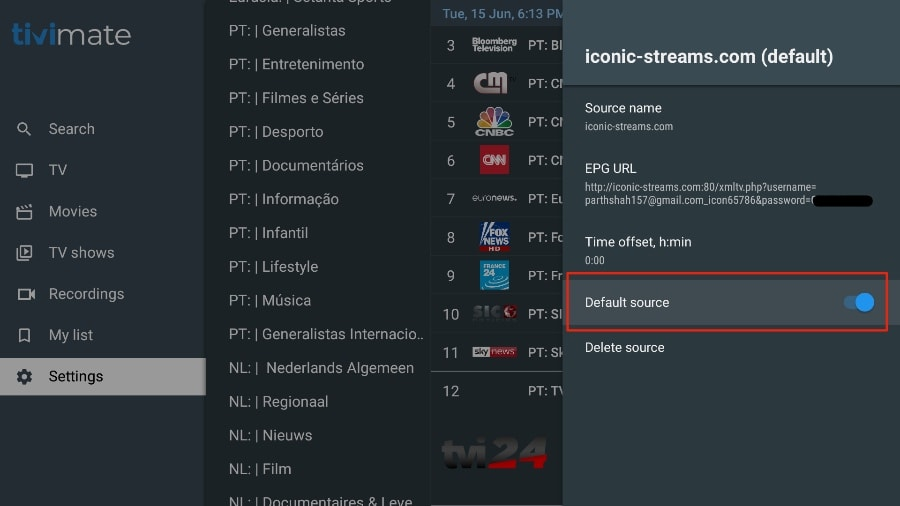
Enabling the default source in the TiviMate IPTV app ensures that channels are loaded from the selected provider, such as getxtremeiptv.
As previously mentioned, the main features of TiviMate are paid. You must pay for the premium version to use TiviMate to its full extent.
If you try to access a premium feature without having a premium account, TiviMate will prompt you to upgrade to the premium version. For example, if you try to add a channel to your favorites list, TiviMate will ask you to upgrade the app. If you wish to continue using the free version, you can click “Cancel” and continue using the free TiviMate app on the FireStick.
To purchase the premium version, you must use the TiviMate Companion app from the Google Play Store.
The TiviMate app subscription is not included in our plans.